New: version 2.5.0 – network cameras such as ESP32-CAM and a virtual laser machine for testing without hardware

Your laser. Your software. Free.

KizamuBeam is open-source software to design, engrave and cut – made for diode lasers running FluidNC, GRBL and friends. Free on macOS, Windows and Linux.


GPL-3.0 · macOS · Windows · Linux · Stable release

Kizamu (刻む) is Japanese for “to carve, to engrave, to cut finely”.

KizamuBeam main window with the workspace, layer list on the right and tools on the left
  • Costs nothing

    No subscription, no license keys, no account. Install and start.

  • Open for good

    GPL-3.0-or-later. The code is on GitHub – contributions welcome.

  • More than engraving

    Boxes, drawers, gears and hinges, generated parametrically – with proper fit and a 3D preview.

  • Safe at the machine

    Setup wizard, work-area check before every job and alarms in plain language.

Features

Everything from idea to finished part

One app for design, image work, part generation and machine control.

Design & edit

Draw, combine, fine-tune – in a layout that feels familiar from the first click.

  • Lines, Bézier curves, rounded rectangles, ellipses, polygons, stars and multi-line text
  • Boolean operations, offset, node editing, trimming, and snapping to nodes, midpoints and intersections
  • Text on a path, welded letters and true outlines from your system fonts
  • Font manager: search all Google Fonts with preview and install them in one click, add your own TTF/OTF files, favorites – missing fonts in a project are downloaded for you
  • Warp text, shapes and images into an arc, bulge, flag or perspective, as clean Bézier curves
  • Grid and circular arrays with live preview, multi-page projects and a history you can jump back through
  • Import SVG, DXF, PDF, Illustrator (.ai), images and LightBurn projects (.lbrn2) – colors map straight to the matching layer
  • Export as SVG, DXF, PDF and Illustrator (.ai) – curves stay curves, layers stay separate
  • Dockable windows, customizable toolbars, a fully adjustable grid, light and dark theme

Images & engraving

Get photos, logos and artwork onto material the way you pictured them.

  • Ten image modes, including Floyd-Steinberg, Jarvis, Stucki, halftone, newsprint, sketch and grayscale
  • Brightness, contrast, gamma, sharpening and denoise with before/after compare and a 1:1 view
  • The workspace shows the rasterized result at laser resolution
  • Crop, mask and remove backgrounds locally, trace images into clean Bézier paths
  • Fill engraving with scan angle, cross-hatch, overscan and bidirectional mode, or offset fill in rings
  • Camera overlay: calibrate a USB, network (e.g. ESP32-CAM) or head-mounted camera, see your material on the workspace and place a design on every detected workpiece automatically

Machine & output

Connect, check, frame, burn – no second program needed.

  • Five-step laser setup: connect, detect firmware, check settings, test the axes, run a safe test job
  • USB, Telnet or WebSocket – with live position and plain-language alarms
  • Preview with time estimate and scrubber; “Start Here” resumes an interrupted job
  • Work-area check before every job and frame, including the reported work offset
  • Material test grid with photo evaluation, focus test (ramp or Z series), rotary support (roller or chuck), custom G-code scripts per device
  • Print and Cut: print registration marks, measure them with a low-power laser dot or the camera, and lay the design precisely onto the print
  • Jig generator: holding plates with precise cut-outs for workpieces from a vector file, photo or camera, with slot numbers and registration marks
  • Save G-code or stream it directly – streaming runs in the Rust core
  • Adjust power and speed during a job; FluidNC: upload jobs to SD card or flash and run them there, edit config.yaml with backups, find the controller on Wi-Fi

Generators & 3D

Enter dimensions, get parts. Double-click, change, everything recalculates.

  • Finger-jointed boxes, drawers, compartment inserts and slot-together shelves as complete assemblies
  • Involute spur gears, gear pairs, racks, GT2/HTD timing pulleys and cams
  • Joint tool: finger joints, tab-and-slot, cross-lap, snap-fit and hook joints, wedge tenons, T-slots, lid hinge
  • Living hinges in seven patterns
  • Disc sphere: a lamp shade made of round discs with angled slots, 6 to 32 discs, no glue
  • Layered model: slice an STL or OBJ model into stacked, numbered sheets
  • Rib model: ribs with half slots on a spine, from STL or OBJ; body, legs and a curved tail as separate sections, suggested at the push of a button, with an assembly plan page and denser ribs at details
  • 3D view with explode slider – collisions show up in red before you waste material, engravings appear on the parts
  • Material looks in 3D: wood grain, slate, acrylic with refraction, metal – engravings as they will look on the material, also as a mockup with shadows and PNG export for customers
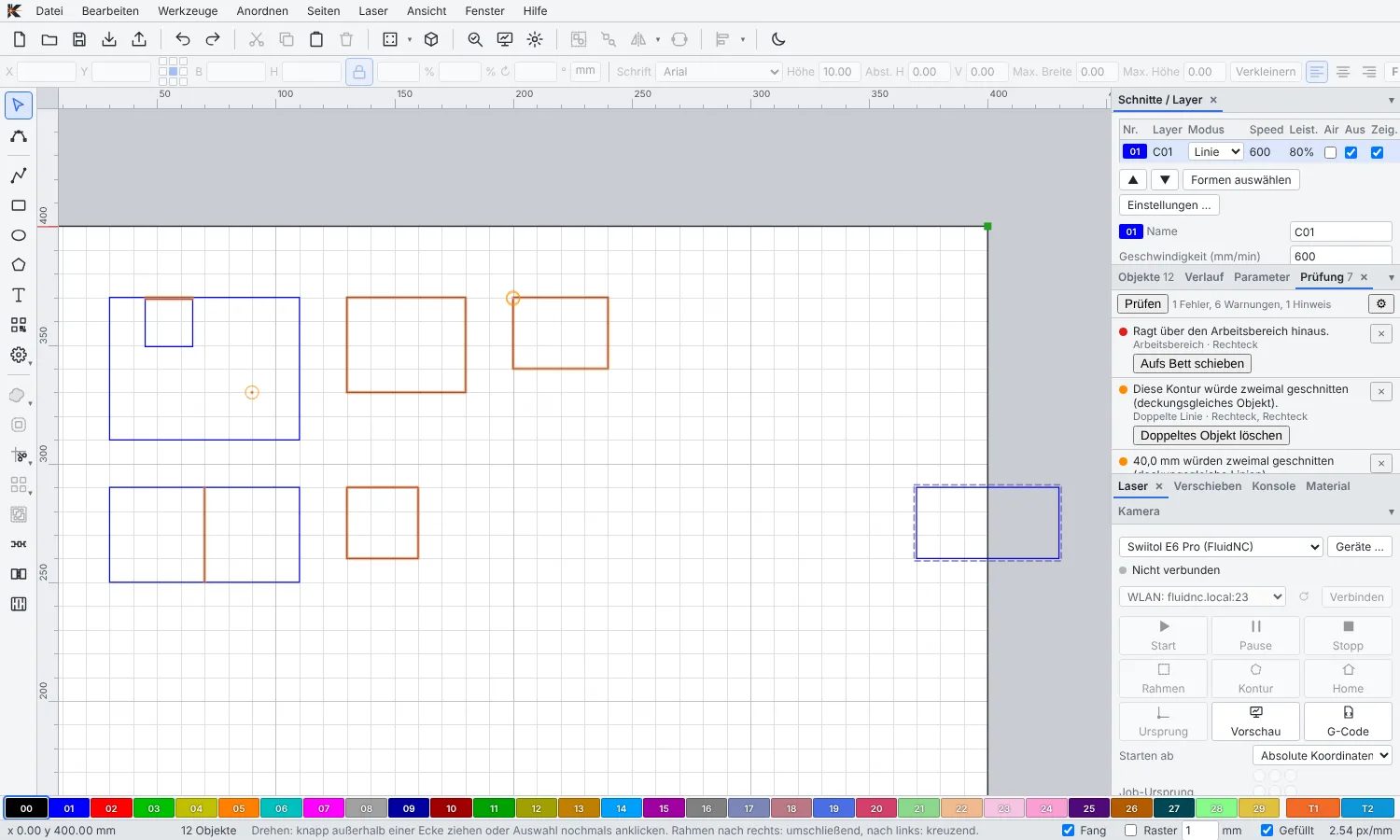
  • Design check and fit calibration: find and fix thin bridges, open outlines and too-tight slots
Drawer generator in the 3D view: finger-jointed parts pulled apart, no collisions

Production

From one-off to small batch – name tags, key fobs, labels.

  • Automatic nesting by true outlines, parts inside holes, overflow onto new pages, scrap pieces as sheets; exclude single parts from lasering or park them next to the bed
  • Templates with project parameters and formulas – key fob, name tag and labelled box included
  • Series from a table or CSV: every row becomes a finished copy, edit the table right in the dialog
  • QR codes (link, Wi-Fi, vCard), barcodes (Code 128, EAN, UPC, Code 39, ITF) and variable text with serial numbers, dates and CSV columns
  • Library with 400 built-in motifs and design elements (animals, plants, holidays, frames, borders, ornaments …) plus room for your own – with previews and search, insert by double-click or drag
  • Cut settings per layer with sub-layers, perforation, lead-in/lead-out, overcut, power ramp in corners and Z step per pass
  • Material library for cut and image settings; LightBurn libraries (.clb) can be imported
  • Toolbox: every generator and tool as a tile, with search in English and German, favorites, recently used tools and templates from extensions
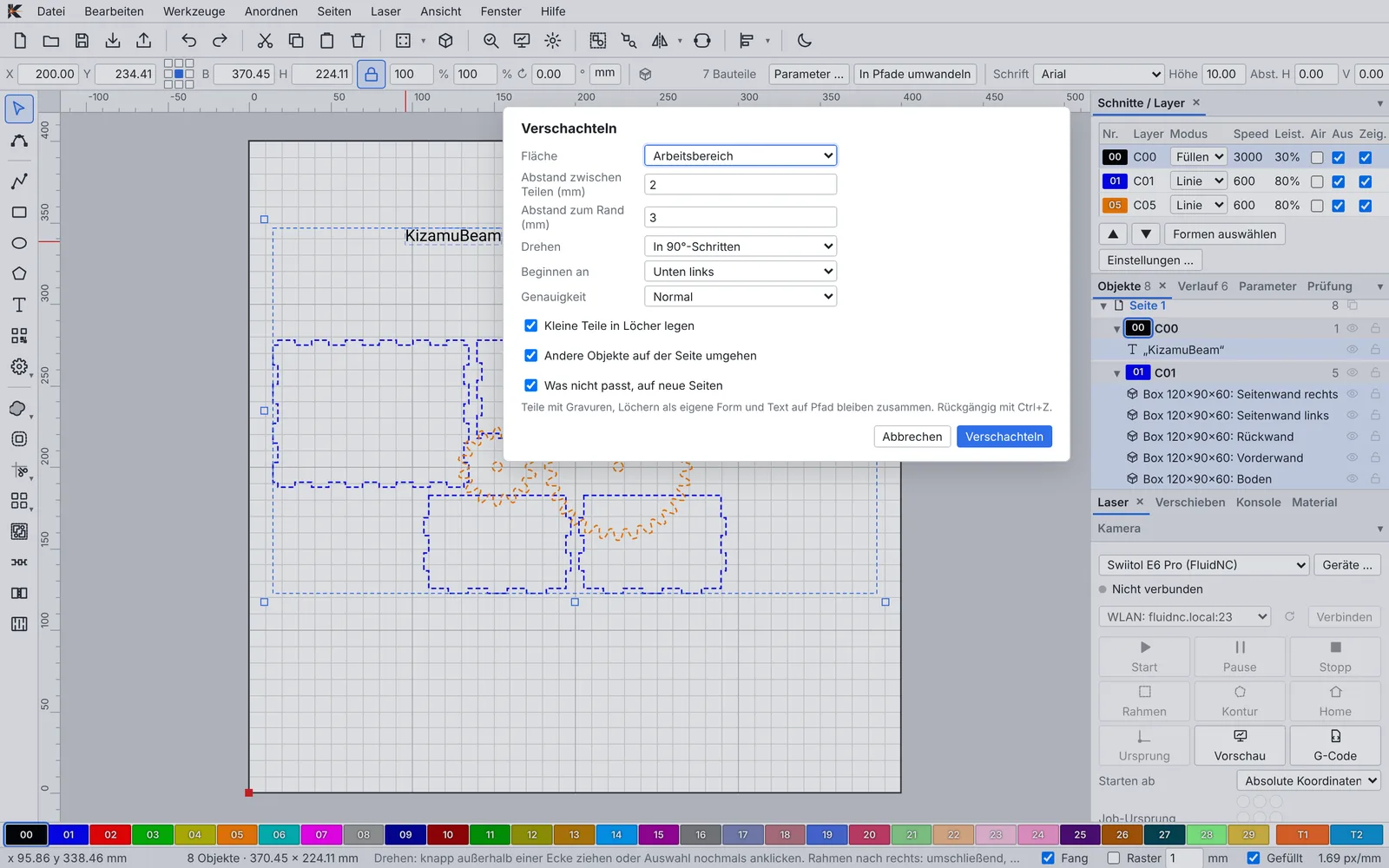
Nesting dialog over the selected parts of a box on the workspace

Open & extensible

Free software that grows with you – and talks to your tools.

  • MCP server for AI agents: read, design, generate parts. Local only, off by default, token-protected
  • Machine actions from agents only start after you confirm – pause and stop always work
  • Extensions (.kzp) add device presets, templates, materials and motifs – no app update, data only, no code
  • Transfer settings, devices and libraries as a file or sync them between computers through your own folder (iCloud, Dropbox, Nextcloud)
  • Interface in English and German; new languages are easy to add
  • GPL-3.0-or-later, open JSON file formats, built with Tauri 2, TypeScript and Rust
  • Formerly “Laserwerk”: settings, devices and materials carry over, old projects still open

Hardware

Works with your laser

KizamuBeam talks to the controllers found in most hobby diode and CNC lasers.

Firmware

  • FluidNC
  • GRBL 1.1
  • grblHAL
  • Marlin
  • Smoothieware

Connection

  • USB (serial)
  • Wi-Fi via Telnet
  • Wi-Fi via WebSocket

Device presets

Presets for popular machines from Swiitol, Ortur, Atomstack, Sculpfun, xTool, Creality Falcon, Two Trees, Longer and Comgrow – or generic per controller.

  • Tested day to day on a Swiitol E6 Pro running FluidNC.
  • Not supported: galvo lasers and Ruida/DSP controllers.

Manufacturer names only identify compatible machines; no affiliation with the manufacturers.

Download

Download KizamuBeam

Current version: 2.5.0. Free, no sign-up.


For your system

macOS

Universal (Apple Silicon & Intel) · .dmg

Download
For your system

Windows

Installer (.exe)

Download
For your system

Linux

AppImage · .deb · .rpm

Download

Lasers are not toys: wear eye protection, run your exhaust and stay with the machine.

Test without a laser

KizamuBeam Virtual Machine

A separate, free program that behaves like a laser running FluidNC. Send your job to it and watch it engrave and cut in real time – no material used and no risk to your machine.

  • Emulates a FluidNC controller over Telnet (port 2323) and WebSocket (port 8181) – KizamuBeam connects through the “KizamuBeam Virtual Machine” device preset, other programs as a GRBL or FluidNC network device
  • Moves with real acceleration and a motion planner: run time, framing, homing and error messages just like on the machine
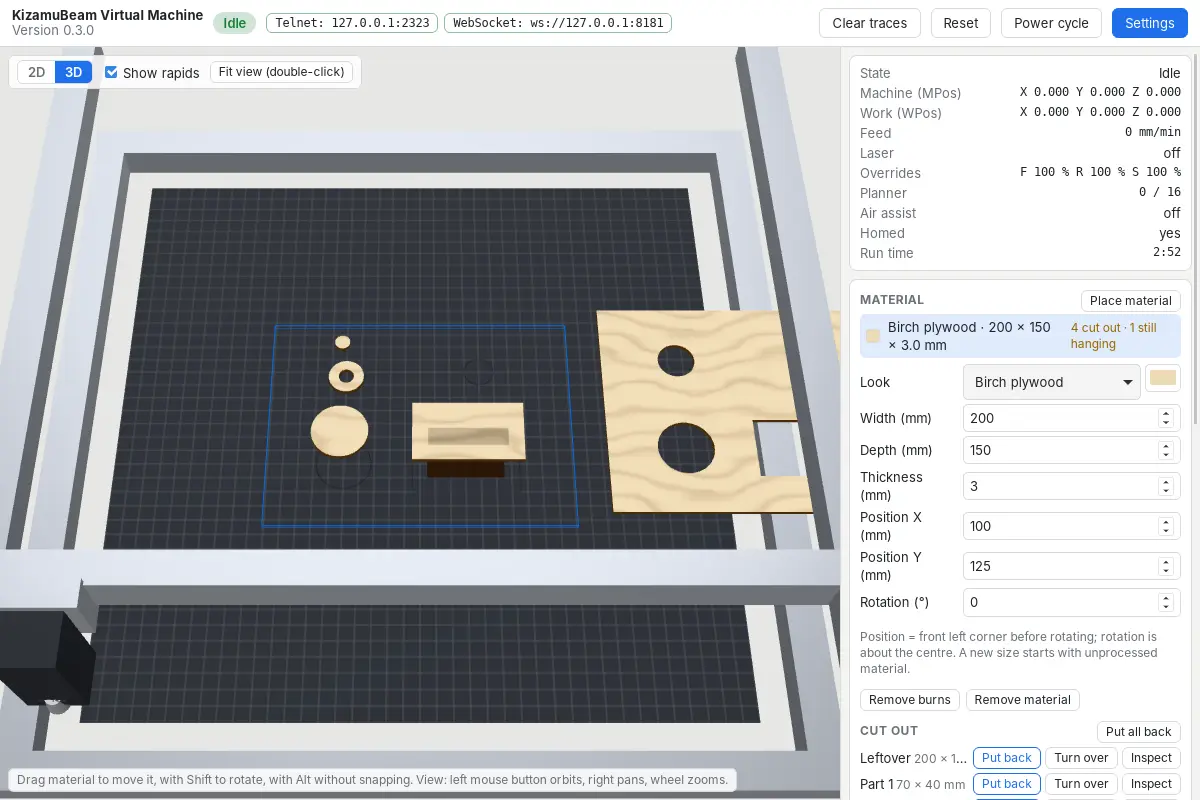
  • 3D view of the bed with the laser module, plus a 2D top view
  • Place material: plywood, acrylic, cardboard and more – lines burn in according to power and speed
  • Take cut-out parts out, flip them over and inspect them from every side; parts that are still attached are flagged
  • Virtual camera above the bed or on the head – usable in KizamuBeam as a network camera, including calibration
KizamuBeam Virtual Machine in the 3D view: cut-out parts lie next to the plywood sheet, machine state and material on the right

Download the Virtual Machine

Preview release for macOS, Windows and Linux. Installs independently of KizamuBeam.

All Virtual Machine releases on GitHub Unsigned like KizamuBeam itself: on macOS choose “Open Anyway”, on Windows “More info → Run anyway”.

Frequently asked questions

Is KizamuBeam really free?

Yes. KizamuBeam is licensed GPL-3.0-or-later: no license fee, no subscription, no account – commercial use included.

Will it work with my laser?

If it runs FluidNC, GRBL, grblHAL, Marlin or Smoothieware, very likely – that covers most diode lasers. Galvo lasers and Ruida/DSP controllers are not supported.

Why does my computer warn me when I install it?

The installers aren’t code-signed yet, which is common for young open-source projects. On macOS: System Settings → Privacy & Security → “Open Anyway”; on Windows: “More info” → “Run anyway”.

Can I bring my existing material settings?

Yes. LightBurn material libraries (.clb) can be imported where fields have an equivalent. LightBurn projects (.lbrn2) open with their shapes, images and layer settings. Laserwerk projects and libraries open directly, and SVG, DXF, PDF and Illustrator (.ai) files import as usual.

Is KizamuBeam stable enough for real projects?

Yes – since version 2.2.0 there are stable releases, and KizamuBeam is used on real hardware every day. As with any laser software: check new jobs with preview and frame, and back up important projects.

What’s the MCP server about?

It lets AI agents read and edit your designs. It’s off by default, local only and token-protected, and nothing reaches your machine without your confirmation in KizamuBeam.

How can I help?

Try KizamuBeam on your laser, report bugs and ideas on GitHub, translate the interface into your language, or send a pull request.